From casual snapshots to portfolio-worthy images, the Unique Photo community continues to prove just how far smartphone cameras can go. In this guide, we’ve gathered member-tested tips, app recommendations, and streamlined editing workflows—plus smart gear ideas and upgrade paths—to help you elevate your mobile photography right now.
Best smartphone camera settings for sharper, cleaner shots
The fastest wins come from learning your native camera app and switching on pro features your phone already has.
- Turn on gridlines and level indicator for straighter horizons and balanced compositions.
- Use AE/AF Lock: tap and hold to lock focus and exposure so brightness doesn’t fluctuate while reframing.
- Shoot RAW or DNG when quality matters (iPhone ProRAW, Android Pro/Manual mode) to preserve detail and dynamic range.
- Use the main (wide) camera for best sensor quality; avoid heavy digital zoom—crop later from a high-res file.
- Dial exposure down a notch to protect highlights; recover shadows in editing.
- Use burst mode for action; pick the sharpest frame in post.
Must-have mobile photography apps (iOS and Android)
Our community consistently recommends a mix of pro camera apps and powerful editors. Choose one capture app and one editor to start; add specialty tools as you grow.
- Pro camera control: Halide (iOS), ProCamera (iOS), Moment Pro Camera (iOS/Android), Open Camera (Android)
- Editing powerhouses: Adobe Lightroom Mobile (iOS/Android), Snapseed (iOS/Android), Darkroom (iOS), VSCO (iOS/Android)
- Retouching and repair: TouchRetouch (iOS/Android) for object removal and cleanup
- Specialty and creative: Spectre (iOS) for long exposure, Afterlight (iOS/Android) for textures and film looks
Tip: If you shoot RAW, Lightroom Mobile’s DNG workflow offers the most latitude with exposure, color, and noise control—and syncs seamlessly to Lightroom on desktop via Creative Cloud.
Member-tested mobile editing workflow
A consistent workflow is the fastest path to better results and a faster turnaround. Try this sequence borrowed from the Unique Photo community playbook:
- Cull: Flag favorites in Photos, Lightroom, or your gallery app. Delete obvious misses.
- Global tone: Start with exposure, contrast, and highlight/shadow recovery. Use the histogram when available.
- White balance and color: Set WB; adjust vibrance first, saturation second. Use HSL for targeted color tweaks.
- Crop and straighten: Apply rule of thirds, center for symmetry, or 4:5/9:16 for social crops.
- Local adjustments: Brush or radial filters to brighten faces or add gentle vignettes.
- Texture and noise: Add clarity/texture sparingly. Apply noise reduction before sharpening.
- Sharpen for output: A light web sharpen for social; stronger detail for prints.
- Export presets: Save export presets per platform (IG feed, Stories/Reels, TikTok, Prints) for consistency.
Low-light and night mode tips that actually work
- Stabilize: Use a mini tripod or brace your phone against a wall. Lower ISO + longer shutter = cleaner photos.
- Night mode: Let the phone capture multiple frames; keep still until the progress completes.
- Manual control: In Pro/Manual apps, use the lowest ISO you can hold; lengthen shutter with support.
- Use remote shutters: Wired earbuds’ volume button, Bluetooth remotes, or watch apps reduce shake.
- Embrace available light: Put subjects near window light, neon, or street lamps for mood and color.
Composition and lighting fundamentals for standout phone photos
- Find your subject fast. Clean backgrounds and negative space add impact on small screens.
- Move your feet: Change perspective—get low for drama or overhead for tidy flat lays.
- Side light for texture, backlight for glow: Use reflectors (even a white card) to open shadows.
- Portrait mode wisely: Avoid busy edges; step back slightly for more natural subject separation.
- Golden hour and blue hour: Softer light = less noise, better color, and smoother skin tones.
Essential gear to elevate mobile shooting
Small accessories make a big difference—and Unique Photo stocks the mobile-friendly tools creators rely on:
- Grips and clamps: A MagSafe/clip mount plus a compact grip adds stability and comfort.
- Mini tripods and tabletop stands: Perfect for long exposure, night mode, and self-portraits.
- Pocket LED lights: Bi-color LEDs with diffusion give consistent lighting anywhere.
- Mobile ND filters: Slow shutter for waterfalls, traffic streaks, and cinematic motion blur.
- Gimbals and remotes: Smoother video and shake-free stills.
When you’re ready to step beyond a phone’s tiny sensor—whether for prints, client work, or faster AF and lens options—our community often graduates to compact, creator-friendly cameras that keep the workflow simple:
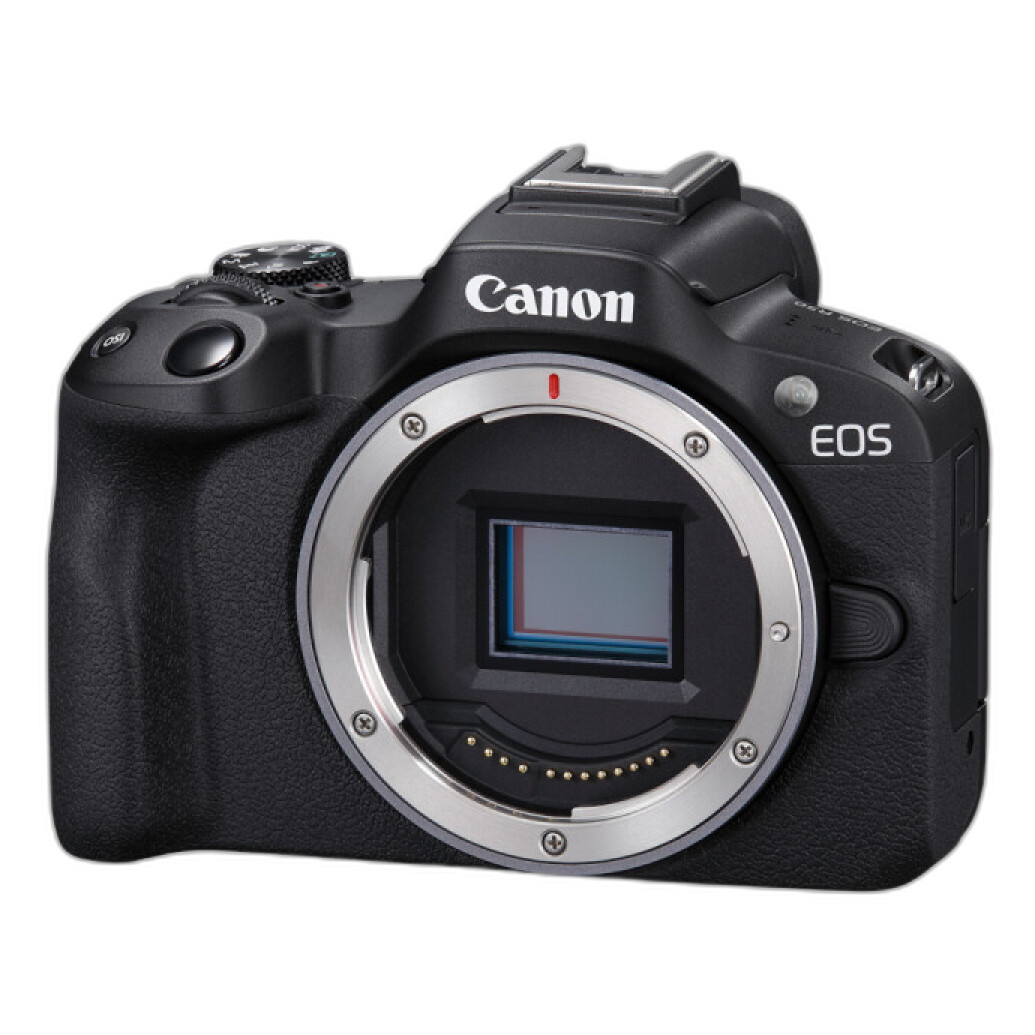
Canon EOS R50 – A lightweight mirrorless starter with fast autofocus and strong image quality for hybrid creators. Great companion to a smartphone for events and travel.
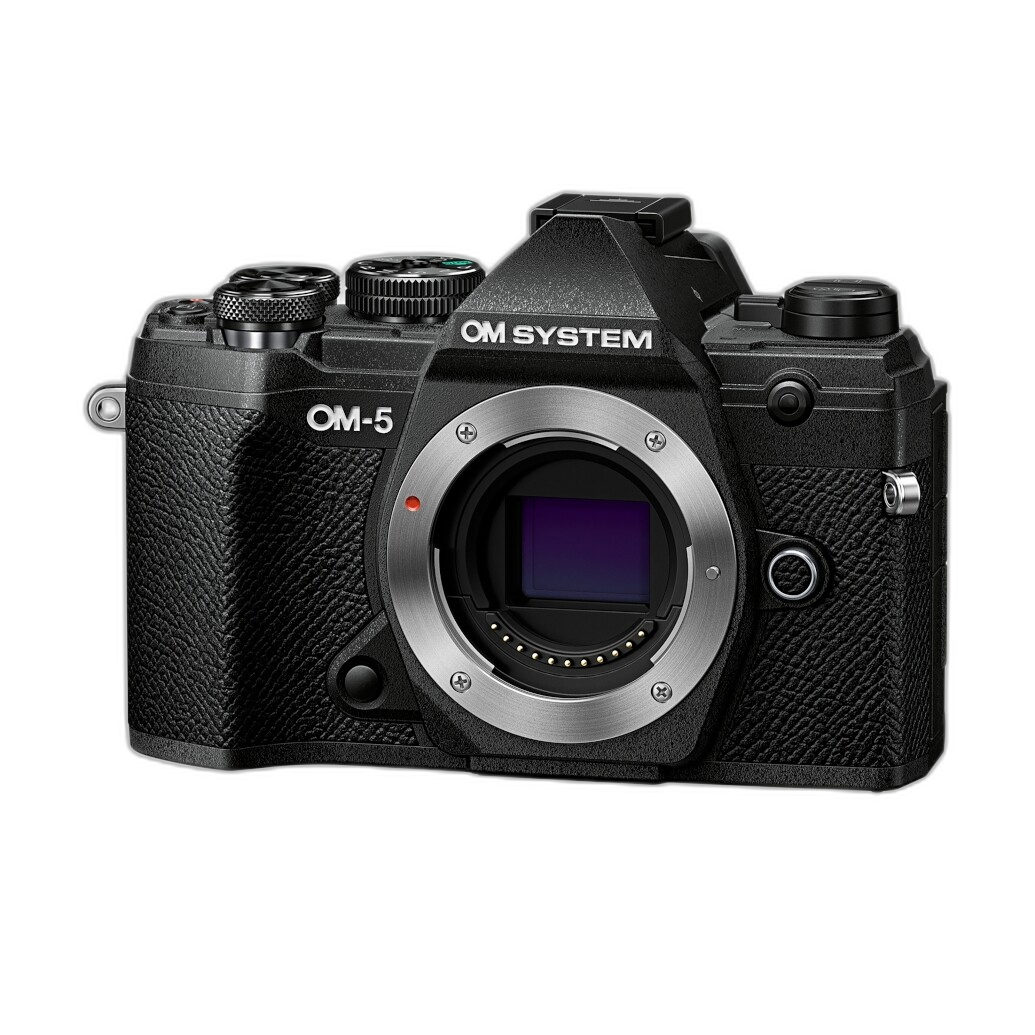
OM SYSTEM OM-5 – Weather-sealed body, powerful in-body stabilization, and computational tricks like Live ND and High Res Shot—excellent for hikers and adventure shooters.
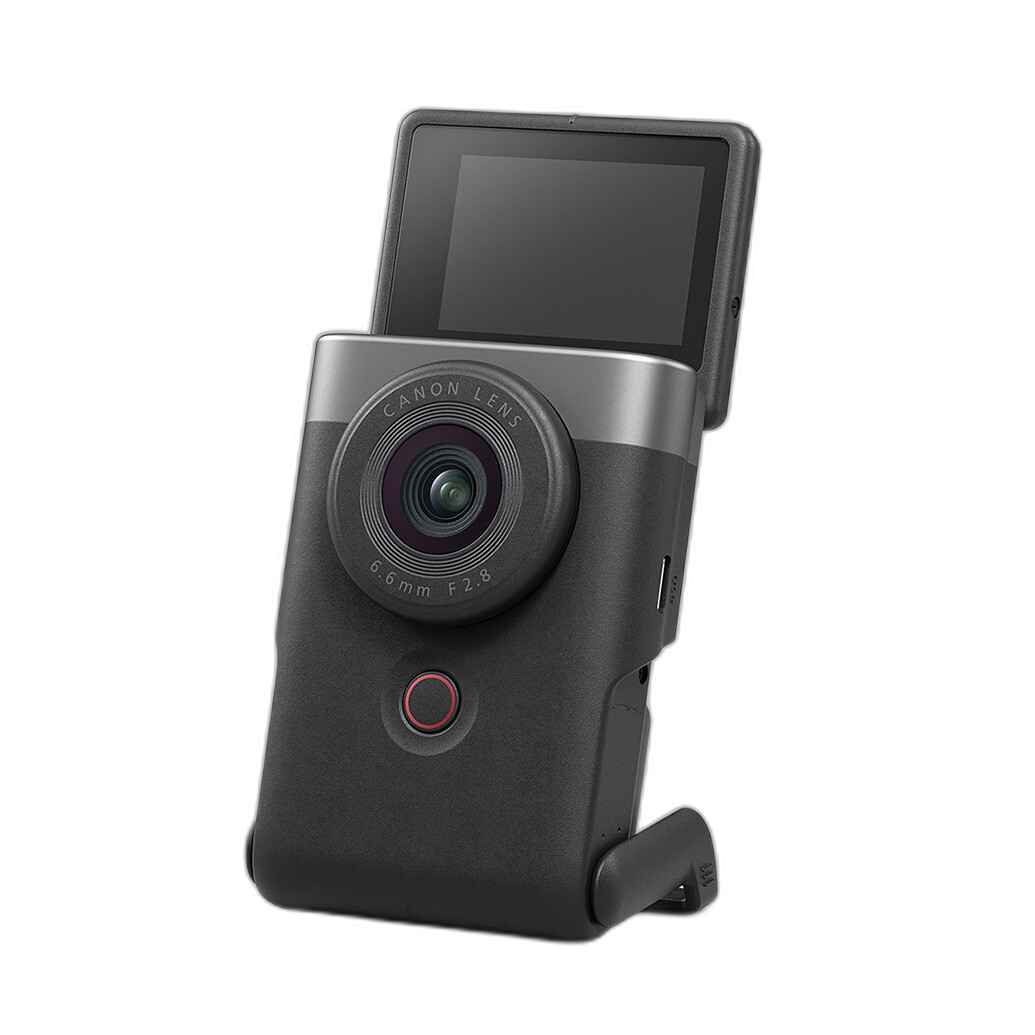
Canon PowerShot V10 – A pocketable vlog camera with built-in mics and a flip stand for quick on-the-go content with better audio than most phones.
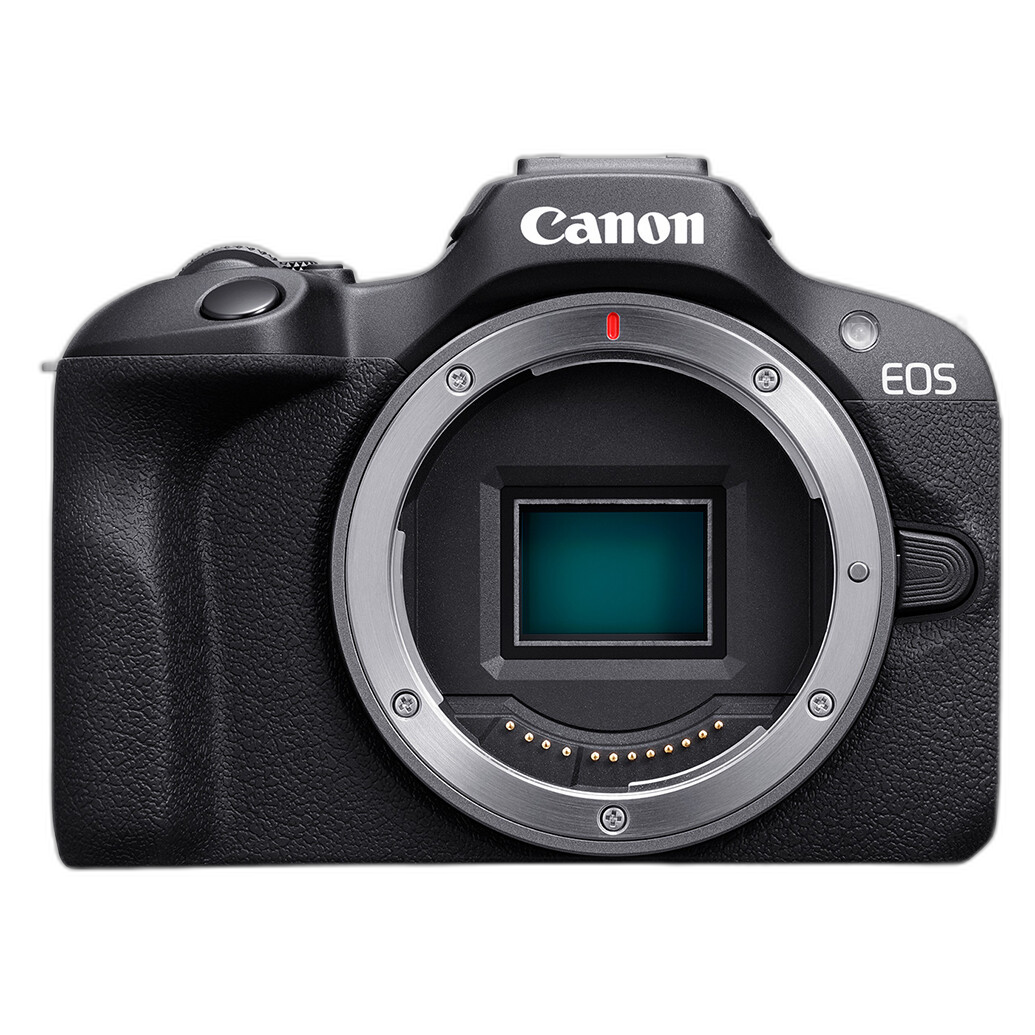
Canon EOS R100 – An easy entry to Canon’s RF ecosystem; pair with a sharp prime for portraits with real optical background blur.
Creators scaling into professional video and live streaming also look to dedicated systems for reliability and control:
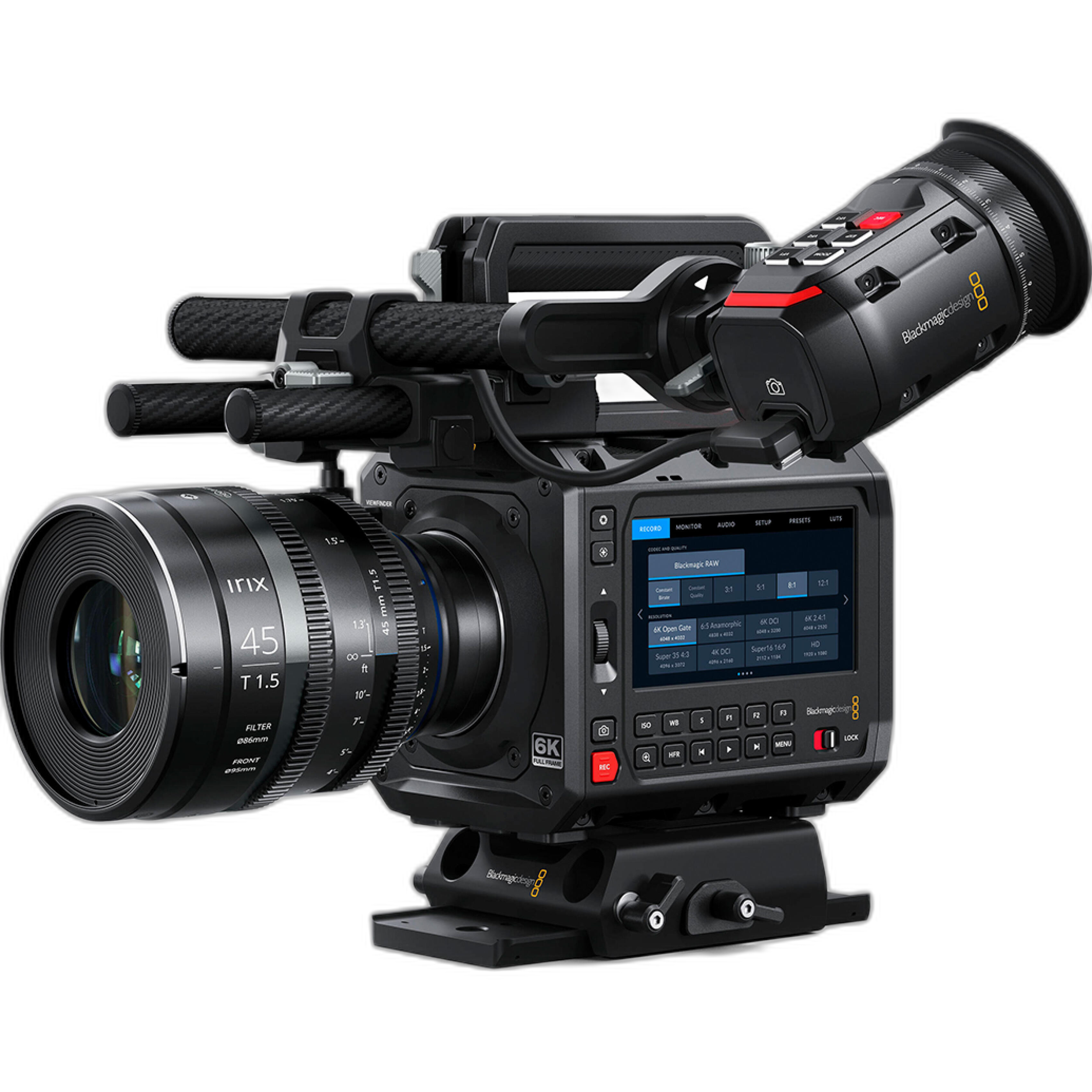
Blackmagic Design PYXIS 6K (Leica L) – A cinema box camera for serious creators who need robust codecs, dynamic range, and flexible rigging.
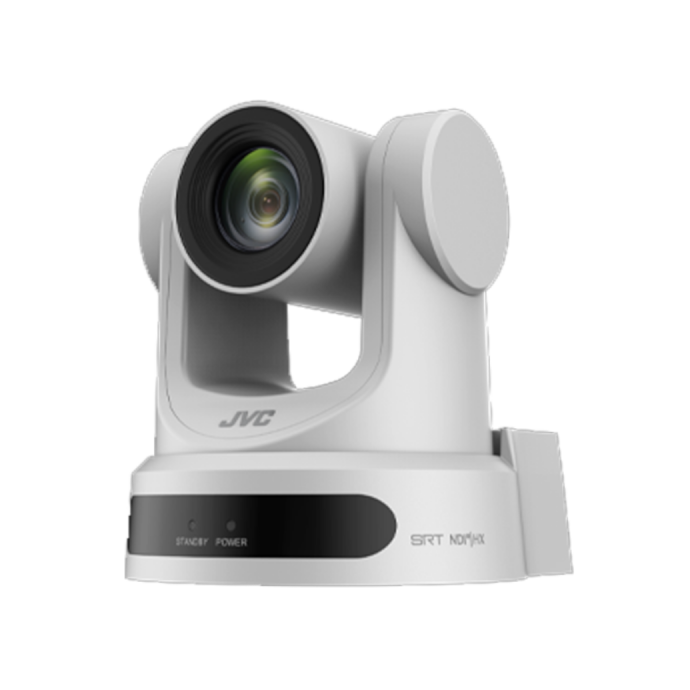
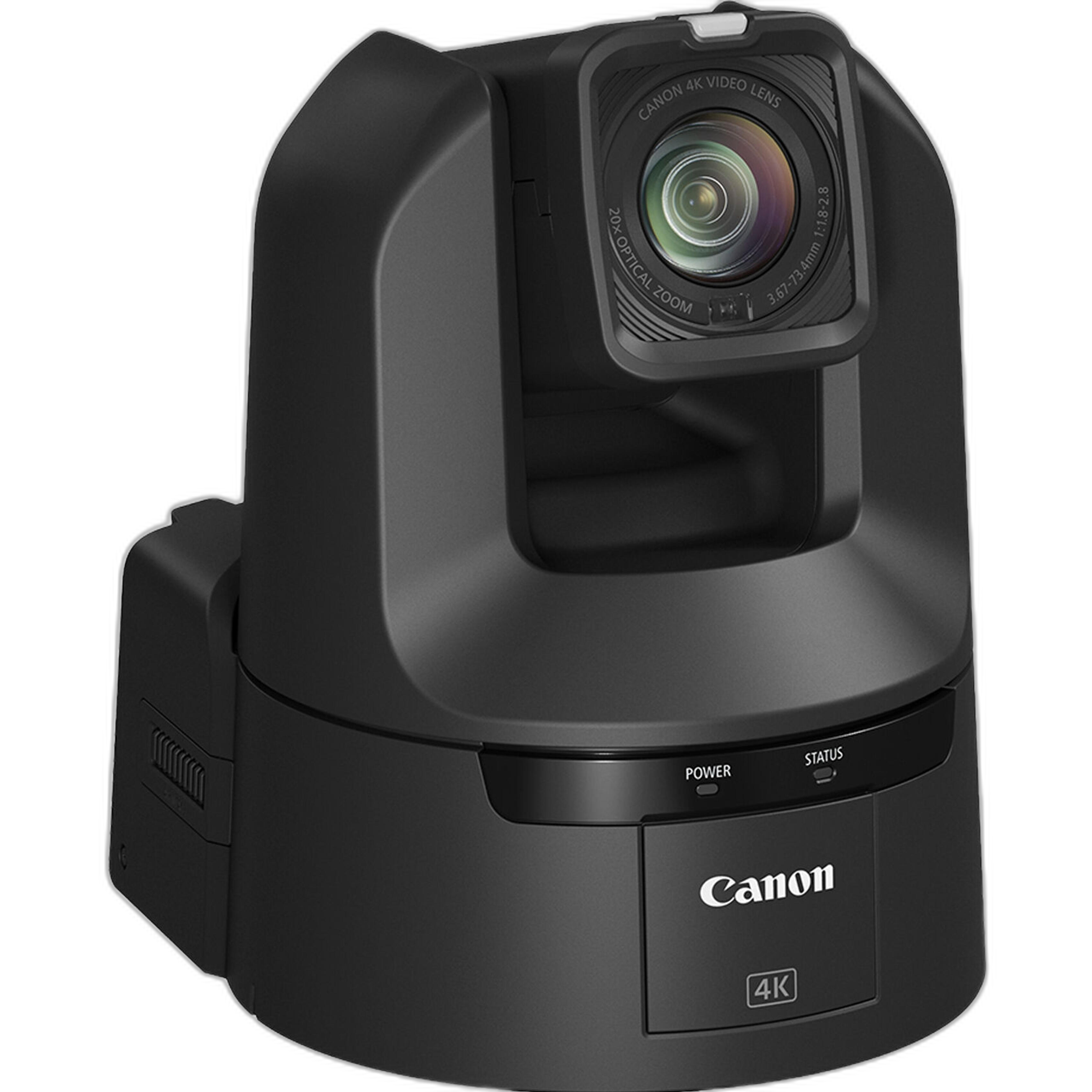
Canon CR-N400 PTZ – For multi-cam livestreams and studio work, PTZ cameras deliver smooth remote control and consistent quality far beyond a phone.
Exporting for Instagram, TikTok, and prints
- Instagram feed: 4:5 portrait (1080 × 1350) or 1:1 square (1080 × 1080). Stories/Reels: 9:16 (1080 × 1920).
- TikTok: 9:16 (1080 × 1920) with safe margins for UI overlays.
- Color space: Export sRGB for consistent playback across devices.
- Sharpen for web: Apply light output sharpening to counter platform compression.
- Prints: Target 300 PPI at final size; use the highest-quality JPEG or a TIFF. Unique Photo’s print lab can help you soft-proof and choose the right paper.
Quick answers to common smartphone photo questions
- How do I shoot RAW on my phone? iPhone Pro models support ProRAW in the native app; many Android phones offer DNG in Pro/Manual modes. Third-party apps like Halide, ProCamera, and Open Camera also capture RAW.
- How do I reduce noise? Stabilize, lower ISO via longer exposure when possible, expose to protect highlights, and use noise reduction before sharpening.
- Should I use HDR? Yes, for high-contrast scenes. Watch for halos—dial back strength in editing if needed.
- What’s the best free editor? Snapseed is powerful and free; Lightroom Mobile’s free tier is excellent for RAW, with paid features for sync and masking.
- How do I stay organized? Create albums by project/date, use consistent file naming on export, and back up to cloud plus an external drive.
Next steps with Unique Photo
Whether you’re perfecting phone shots or planning your first camera upgrade, Unique Photo is here with gear, education, and printing to support your creative journey.
Suggested internal links:
- Shop Smartphone Photography Accessories (grips, mounts, LEDs, ND filters)
- Mini Tripods, Stands, and Gimbals for Mobile Creators
- Classes & Workshops: Smartphone Photography and Editing
- Photo Printing Services: Fine Art Papers and Wall Decor
- Beginner Mirrorless: Canon EOS R50 and Canon EOS R100
- Adventure-Ready Bodies: OM SYSTEM OM-5
- Creator Video & Streaming: Blackmagic PYXIS and Canon PTZ Systems
Visit Unique Photo in-store or online to compare options hands-on, test workflows, and get personalized advice from our team.