New to photo editing? You’re not alone. Across photography forums, experienced users guide beginners through simple, repeatable workflows, compare Lightroom vs. Photoshop and other apps, and share efficient methods for organizing, batch-editing, and enhancing images. This guide brings those community-proven tips together, with helpful presets and tutorials you can explore through Unique Photo.
Beginner-friendly editing workflow (the 10-minute method)
Forum consensus: a consistent, lightweight process beats perfectionism. Start with these steps for most RAW or JPEG files:
- Import and backup: Copy to a dated folder structure (YYYY/MM/DD) and create a second backup drive or cloud copy.
- Cull fast: Use star ratings/flags; keep only the strongest images.
- Profile and white balance: Choose a camera profile or look first, then WB to taste.
- Global tone: Exposure, contrast, highlights/shadows, and black/white points. Aim for balanced histogram, not perfection.
- Lens correction: Enable profile corrections and chromatic aberration fixes.
- Noise and sharpening: Apply modest noise reduction and input sharpening; fine-tune later if needed.
- Crop/straighten: Align horizons and tighten composition early.
- Local adjustments: Use simple masks or gradients for subjects and skies; avoid over-editing.
- Color finish: Vibrance/saturation sparingly; skin and foliage look best with restraint.
- Export presets: Create exports for web (sRGB, 2048–3000px on long edge) and print (300ppi, appropriate paper profile).
Best software for beginners: Lightroom, Photoshop, Capture One, Luminar, ON1, Affinity
Forum discussions often land on “use the right tool for your style.” Here’s a quick, practical comparison:
- Lightroom Classic / Lightroom (Cloud): Excellent cataloging, fast batch edits, strong masking and noise reduction. Best all-in-one start for most beginners.
- Photoshop: Pixel-level edits, composites, retouching, smart objects. Pairs with Lightroom for advanced work.
- Capture One: Superb color tools and tethering; great for studio/product shooters. Cataloging is solid; learning curve slightly steeper than Lightroom.
- Luminar Neo / ON1 Photo RAW: Accessible AI tools (sky replacement, background removal). Good for quick enhancements and special effects.
- Affinity Photo: Affordable, powerful one-time purchase alternative to Photoshop; fewer ecosystem ties, but great capabilities.
Tip from the forums: Choose one app to master first (often Lightroom). Add Photoshop when you need advanced local edits, layers, or compositing.
Efficient image management: cataloging and culling like a pro
Efficiency comes from repeatable structure:
- Folder structure: YYYY/MM/DD_Event. Keep everything consistent.
- Catalog strategy: One main catalog works for most; use Collections/Albums for projects.
- File naming: Camera-original filenames are fine if you add capture date on import; rename on export for clients.
- Keywords and metadata: Add location, subject, and client tags on import. Future-you will thank you.
- Smart previews: Let you edit on the go; speed up laptops.
- Batching: Sync basic corrections across similar shots; then fine-tune hero frames.
Presets and profiles that actually help
Presets are best used as starting points, not one-click solutions. Forum favorites include:
- Camera/film profiles: Start with a profile (e.g., Adobe Color, Camera Standard, or brand looks) that matches your vision.
- Base tone presets: Gentle exposure/contrast/curve presets separate by lighting type (overcast, golden hour, shade).
- Adaptive presets: Subject, sky, or background presets that auto-mask and apply subtle adjustments.
- Noise/sharpen presets: ISO-based presets that apply predictable NR/sharpening by camera.
- Style sets: A small set (3–5) of color looks and one B&W pack to keep your feed cohesive.
Pro tip: Save your own defaults per camera and ISO so every import lands close to finished.
Learn faster: recommended tutorials and Unique University classes
Hands-on learning accelerates results. Unique Photo’s Unique University offers targeted classes that match common forum questions:
- Lightroom for nature and wildlife: practical masking, noise reduction, color work, and exporting.
- Photoshop for landscapes: local contrast, luminosity control, and selective color for natural results.
- Product photography workflow: from capture to clean, consistent e-commerce edits.
Explore course options below:
Editing and Enhancing Landscape and Nature Photography with Photoshop (Unique Photo)
NJCS: Lightroom Photo Editing for Nature and Wildlife with Bobby Stormer (Unique Photo)
Product Photography and Post Production Editing with Blake Taylor (Unique Photo)

Bonus for hybrid creators: If you’re dabbling in video, foundational courses like the Sony-focused session below help you confidently move between photo and video workflows.

Shoot with the edit in mind: filters that save time later
Forum veterans often stress: better capture, less rescue. Two filter types can dramatically reduce editing time:
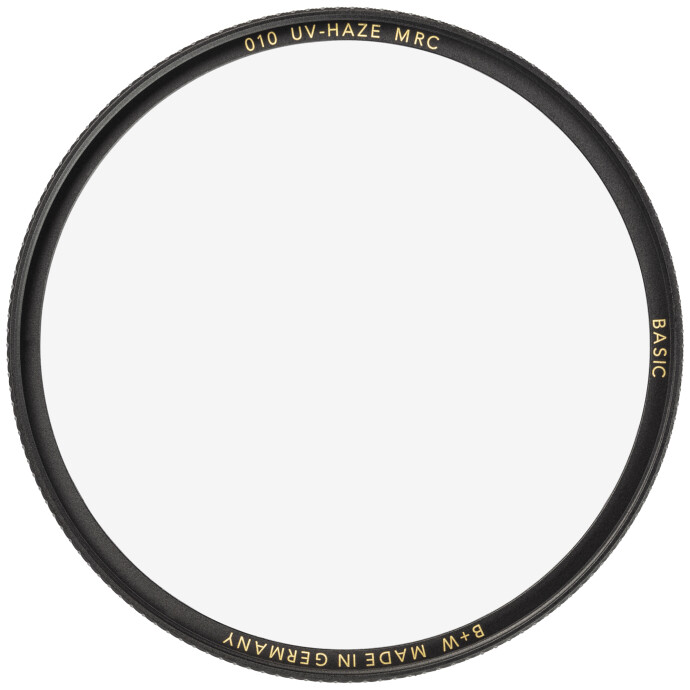
- UV/protection filters: Keep front elements clean and reduce haze in certain conditions, so you spend less time cloning and cleaning.
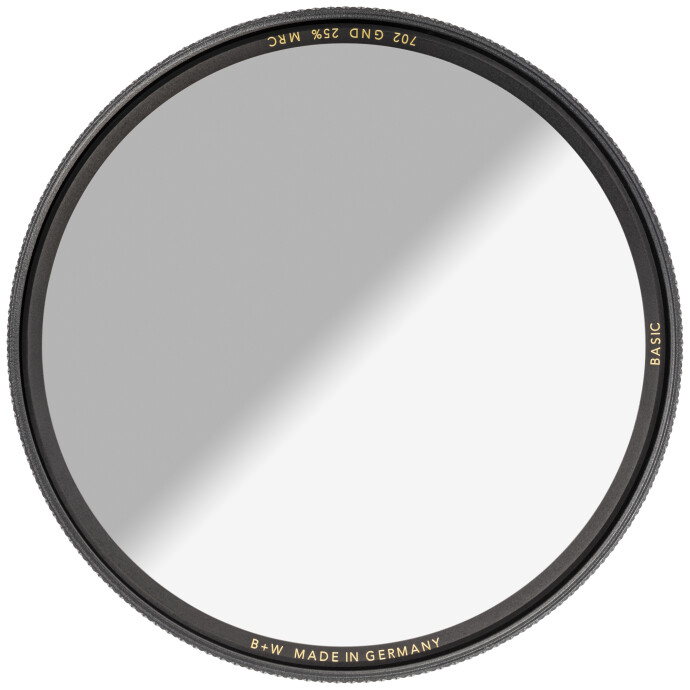
- Graduated ND filters: Balance bright skies and darker foregrounds, so you need fewer heavy highlight recoveries and less noise in shadows.
Useful options available from Unique Photo:
B+W 105mm Basic UV Haze MRC (010M) Filter
B+W 82mm Basic ND 50 Graduated MRC (702M) Filter
Forum FAQs: quick answers for new editors
- RAW or JPEG? Shoot RAW for flexibility; if speed matters, use RAW+JPEG and cull from JPEGs, edit RAWs.
- What color space for web? Export sRGB for consistent web display.
- How much sharpening? Start with modest input sharpening; add output sharpening based on medium (screen vs. print).
- How do I keep looks consistent? Use a small set of presets and copy/sync settings across similar images; finish with image-by-image tweaks.
- How to organize travel shoots? One Collection per day or location; smart collections for flagged selects.
Starter checklist you can save
- Create import presets (WB, profile, lens corrections, base tone).
- Set camera-specific defaults and ISO-based noise presets.
- Build 2–3 export presets (web, lab print, client proof).
- Adopt a fixed folder structure and backup routine.
- Commit to a simple culling system (Picks/Rejects or 1–5 stars).
Conclusion: keep learning with Unique Photo
As forum communities often remind beginners, a reliable workflow and a small toolkit of presets will get you 90% of the way. Unique Photo can help you close the gap with hands-on classes, curated gear, and expert support. Consider adding practical filters to streamline your capture, and explore Unique University to deepen your Lightroom and Photoshop skills.
Internal linking suggestions for your site team:
- Unique University classes hub (Lightroom, Photoshop, and product photography courses)
- Filters category (UV, ND, and graduated ND options)
- Blog guides on cataloging, presets, and export settings
- Events and workshops calendar
Have questions about software or workflow? Visit Unique Photo in-store or online for personalized recommendations and the next class that fits your goals.