Workflow Tips for Delivering Images to Editors on Tight Deadlines
When the clock is ticking, a dependable workflow is your greatest asset. These practical tips focus on shaving minutes at every step—from ingest to delivery—so you consistently hit deadlines without sacrificing quality. Along the way, we’ll note a few tools from Unique Photo that can help you move faster and stay organized.
Rapid ingest and rock-solid backup
1) Pre-build your job folder and naming scheme
Create a job template you duplicate before each assignment: 01_Ingest, 02_Selects, 03_Processed, 04_Delivery, 99_Archive. Use a consistent file renaming pattern (e.g., 2026-05-05_Client_Event_####) so files sort chronologically and are easy for editors to reference.
2) Ingest in parallel with fast card readers
Copy cards simultaneously to cut waiting time. If you’re shooting on SD, a dedicated dual-slot reader like the Lexar Professional Workflow Dual-Slot SD UHS-II Reader (LRD1116) lets you offload two cards at once. For cameras using CFexpress Type A, the Lexar Professional Workflow CFexpress Type A 4.0 Card Reader (LRD1117) helps you move large bursts quickly. Kick off parallel copies, verify counts, then start culling while transfers finish.
3) Back up to a dedicated high-speed SSD immediately
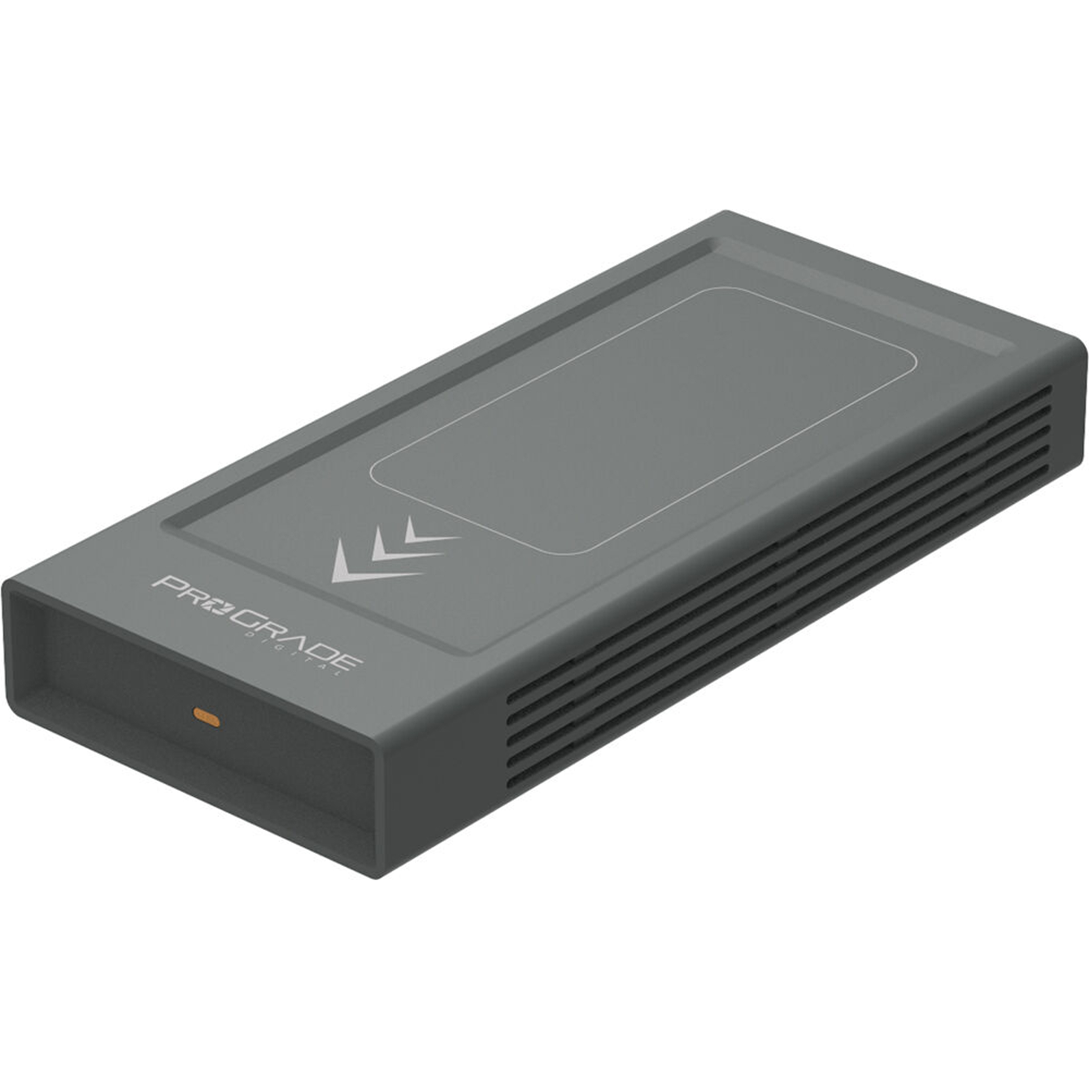
Adopt a 3-2-1 mindset right away: primary working folder on your laptop, mirrored backup on a fast external SSD. A purpose-built workflow drive like the ProGrade Digital PG10 v2 Solid State Workflow Drive — 8TB keeps massive shoots together and portable for handoffs or travel.
Lightning-fast culling and consistent edits
4) Cull on embedded previews, then render only your selects
Use fast preview tools (e.g., embedded previews) to flag and star first; render 1:1 previews only for your keepers. Work in full-screen, turn on auto-advance, and choose a single triage method (flags or stars) to avoid indecision. Aim to reduce in passes: Pass 1 picks, Pass 2 tightens, Pass 3 final shortlist.
5) Build quick-develop presets and sync them in batches
Save time with baseline presets—profile, white balance, tone curve, noise/sharpen defaults for each camera/ISO. Apply to a batch, then fine-tune the hero frames. If you want to sharpen your RAW-to-delivery speed, consider training focused on Lightroom and Photoshop efficiency.

6) Caption and keyword as you go with templates
Editors love complete IPTC. Build templates for event, location, and boilerplate credits, then quickly customize names, jersey numbers, or key moments. Doing this during culling prevents last-minute metadata scrambles.
Export and deliver like a pro
7) Save export presets for every outlet
Make a one-click preset for each editor/publication specifying color space (sRGB is a safe default unless told otherwise), long edge size, quality, sharpening, and filename format. Keep a RAW+JPG option ready for breaking news or social-desk requests.
8) Package files with clear structure and built-in checks
Deliver a single folder named with date_client_slug. Include: 01_Selects_JPG (or TIFF), 02_Captions (if separate), and an optional text file with counts and notes. Zip the folder to preserve structure and reduce upload hiccups. Always verify the file count matches your delivery list.
9) Use the editor’s preferred delivery channel and confirm receipt
Keep presets for each platform (FTP, PhotoShelter, Dropbox, Box, or WeTransfer) and store credentials in a secure manager. After upload, send a concise note with highlights, any embargo details, and a link. Request a quick “got it” confirmation—saves panic later.
Set expectations and keep improving
10) Align on style and priorities before the assignment
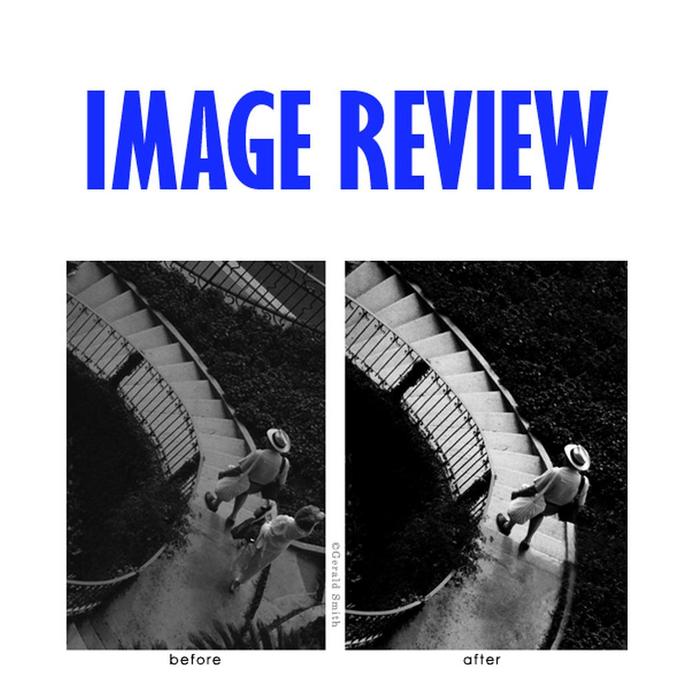
Five minutes of pre-briefing can save hours later. Ask for specific moments, orientation needs, and tone references. If you want expert feedback on how your edits read to a seasoned reviewer, a focused portfolio consult can speed up your future turnarounds by clarifying what to deliver and what to cut.
Conclusion
Deadlines reward preparation and repeatable systems. Template your folders and exports, ingest and back up in parallel, cull with intent, and keep your presets dialed. With fast tools like Lexar Workflow card readers and a reliable SSD such as the ProGrade PG10 v2—and with continued learning through Unique University classes and consultations—you’ll deliver strong images on time, every time. Visit Unique Photo to outfit and refine your workflow.