Introduction: Building a Faster, Smarter Lightroom Workflow
If you are looking for a more efficient Lightroom editing workflow, the biggest gains usually come from three areas: faster file ingestion, better storage performance, and clearer editing habits. Rather than treating Lightroom efficiency as just a software problem, the best approach is to think of it as a full workflow—from importing cards to organizing files, editing responsively, and archiving safely.
For photographers who want practical tips and real improvement, a strong setup can combine hardware like the Lexar Professional Workflow Dual-Slot SD UHS-II Reader and the ProGrade Digital PG10 v2 Solid State Workflow Drive - 8TB with training resources such as NJCS: Lightroom Photo Editing for Nature and Wildlife with Bobby Stormer and EXPO: Lightroom Basics - Develop Module with Blake Taylor. Together, these products help turn Lightroom from a bottleneck into a streamlined editing environment.

This review-style guide looks at which products best support efficient Lightroom work, how they fit into a recommended workflow, and which options are most worthwhile to buy from Unique Photo depending on your experience level.
Recommended Lightroom Workflow at a Glance
A practical efficient Lightroom workflow usually looks like this:
1. Ingest photos quickly from fast memory cards using a reliable reader.
2. Copy files to a fast working drive before editing.
3. Import into Lightroom with a clear folder and naming structure.
4. Cull aggressively using flags, stars, and color labels.
5. Apply presets and batch adjustments where possible.
6. Use the Develop module for global edits first, then local refinements.
7. Export finals and archive original files to long-term storage.
The products below support these steps particularly well.
Key Features and Best Product Picks
Best Lightroom Learning Resource: NJCS: Lightroom Photo Editing for Nature and Wildlife with Bobby Stormer
For photographers who want editing tips instead of just gear, this course is the most directly relevant product in the lineup. NJCS: Lightroom Photo Editing for Nature and Wildlife with Bobby Stormer focuses on real-world Lightroom editing techniques, especially useful for photographers dealing with large image sets, subtle tonal adjustments, and detailed subject matter.
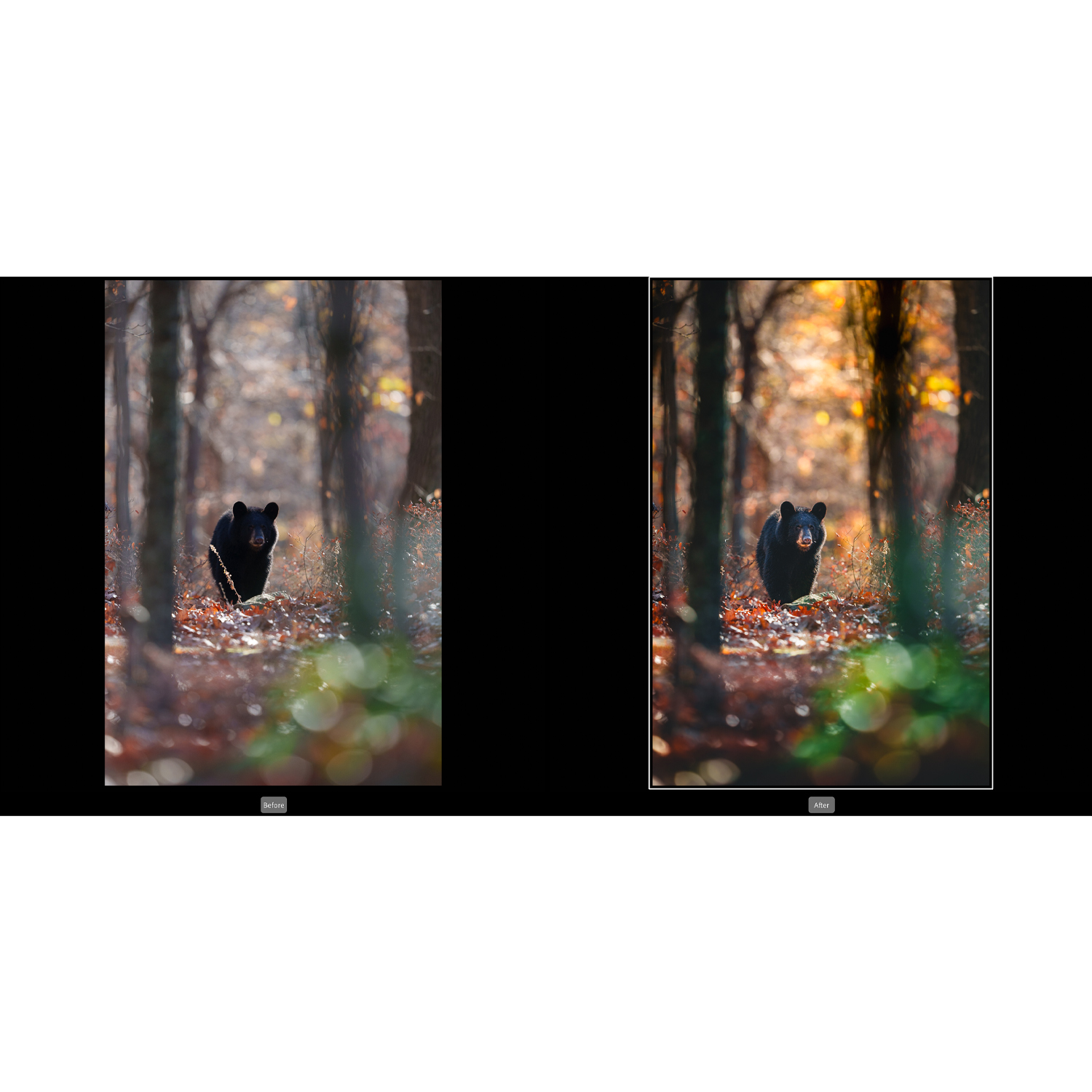
What makes this especially valuable for workflow efficiency is that Lightroom speed is not only about computer performance—it is also about making faster decisions. Learning when to use global adjustments, how to refine contrast without overediting, and how to process multiple images consistently can save far more time than many photographers expect.
This is a strong choice for nature and wildlife shooters, but the broader Lightroom habits taught in a class like this can benefit nearly any photographer.
Best Lightroom Fundamentals Class: EXPO: Lightroom Basics - Develop Module with Blake Taylor
If your main goal is to become faster in Lightroom, a basics-focused class can be one of the smartest purchases. EXPO: Lightroom Basics - Develop Module with Blake Taylor appears especially well positioned for users who understand photography but have not fully streamlined their editing approach.

The Develop module is where many users lose time—either by over-editing or by working in an inconsistent sequence. A course centered on this part of Lightroom can help establish a repeatable order of operations, such as:
Start with profile and white balance, move to exposure and tone, then address presence, color, detail, and local masks. That sounds simple, but a disciplined routine is one of the best efficiency tips available.
For beginners and intermediate users, this class may offer the highest return on investment in terms of saved editing time.
Best Hardware Upgrade for Import Speed: Lexar Professional Workflow Dual-Slot SD UHS-II Reader
One of the most overlooked ways to improve Lightroom workflow is to reduce import time. The Lexar Professional Workflow Dual-Slot SD UHS-II Reader is a highly relevant accessory for photographers working with SD media, especially event, travel, wildlife, and hybrid shooters who routinely bring back high volumes of files.
A dual-slot UHS-II reader is ideal because it helps speed up ingestion and keeps your desktop process organized. Fast card transfers mean less waiting before culling and editing can begin. For photographers processing multiple cards per shoot, this kind of upgrade can make the whole Lightroom experience feel more professional and less fragmented.
Even though it is not the most glamorous purchase, it is exactly the sort of practical tool that improves everyday workflow efficiency.
Best Storage Upgrade for Active Lightroom Projects: ProGrade Digital PG10 v2 Solid State Workflow Drive - 8TB
For serious Lightroom users, storage speed matters almost as much as CPU and RAM. The ProGrade Digital PG10 v2 Solid State Workflow Drive - 8TB stands out as the premium workflow product in this group, offering a high-capacity solid state solution designed for active production use.
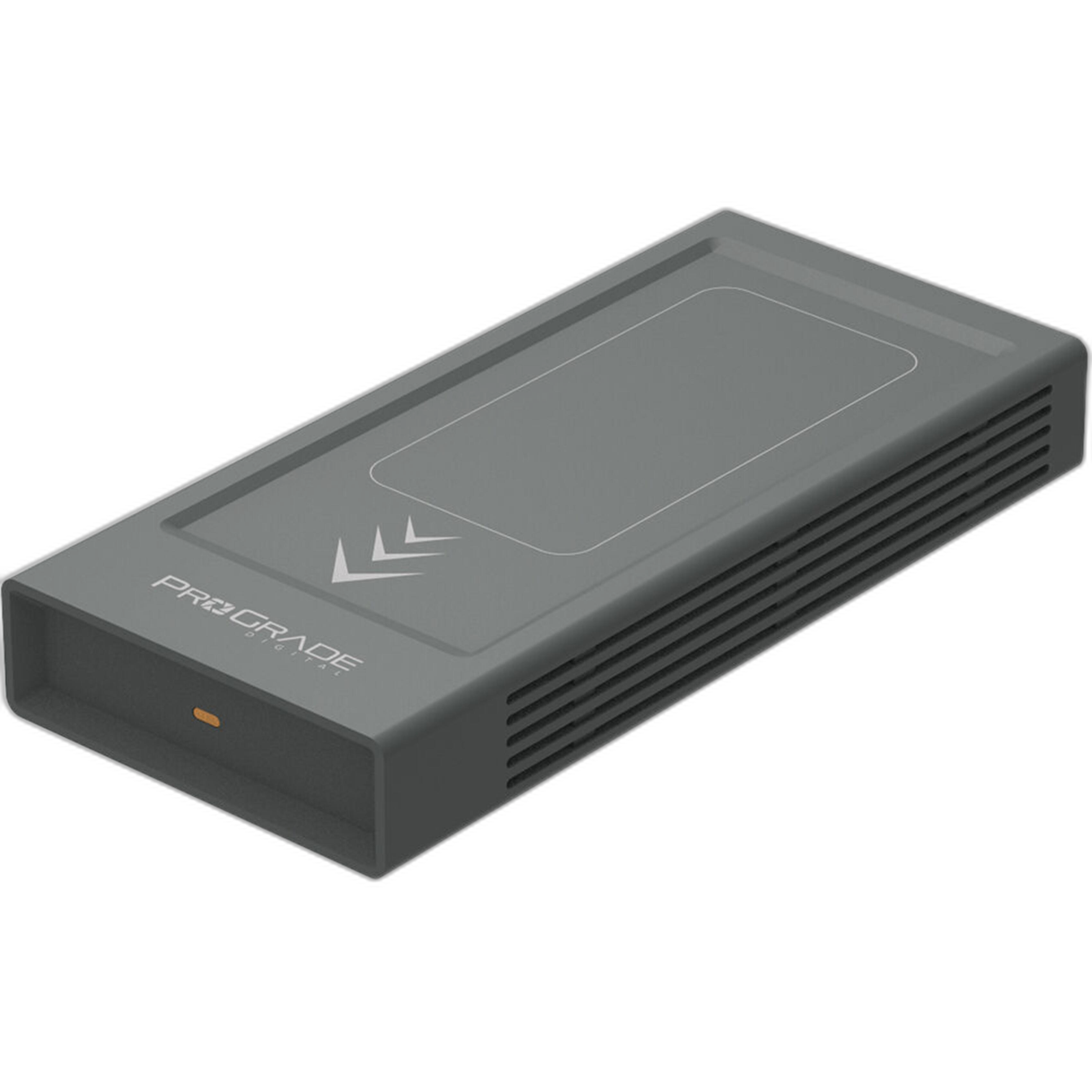
Lightroom benefits from fast drives in several ways: quicker image previews, more responsive browsing through large catalogs, better performance when generating previews, and smoother handling of large RAW files. Keeping your current jobs, catalog, and cache on a fast SSD can noticeably reduce friction in daily editing.
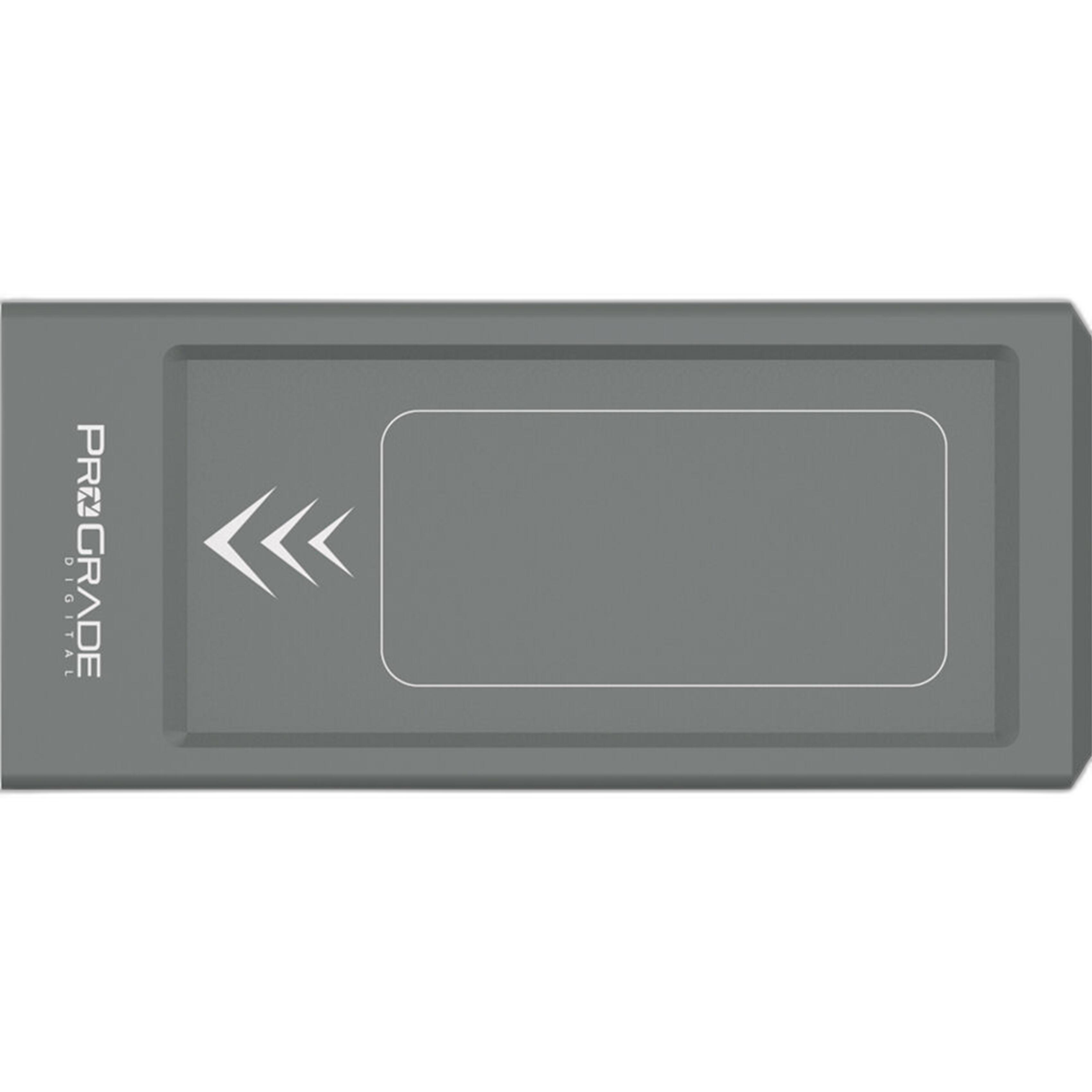
The 8TB capacity is especially attractive for photographers working with large shoots or multiple concurrent projects. Rather than shuffling files between smaller drives, you can keep active work consolidated, which itself is a workflow improvement.
This is the strongest choice here for professionals or advanced enthusiasts who want a serious Lightroom performance upgrade.
Useful Supplement for Broader Editing Skills: Editing and Enhancing Landscape and Nature Photography with Photoshop
Although this product is Photoshop-focused, Editing and Enhancing Landscape and Nature Photography with Photoshop can still complement an efficient Lightroom workflow. The key is understanding where Lightroom should end and Photoshop should begin.

A smart workflow often means doing 80 to 90 percent of the work in Lightroom, then sending only selected images into Photoshop for detailed retouching, compositing, or advanced corrections. Learning that boundary can prevent wasted time trying to force Lightroom to do tasks better suited to Photoshop.
For landscape and nature photographers especially, this can be a helpful add-on resource once Lightroom fundamentals are already in place.
Practical Lightroom Tips for Better Efficiency
1. Import with Intent
Do not dump everything into Lightroom without structure. Use date-based folders, meaningful shoot names, and consistent file renaming if needed. Importing through a fast reader like the Lexar model helps, but organization matters just as much as speed.
2. Cull Before You Edit Deeply
Use flags and star ratings early. Reject obvious misses before touching sliders. This alone can cut editing time dramatically.
3. Build a Repeatable Develop Module Sequence
A class like the Blake Taylor Lightroom Basics session is valuable here. If you edit in the same order every time, you make fewer mistakes and reach a finished image faster.
4. Use Presets and Sync Settings Carefully
Batch editing is one of Lightroom’s greatest strengths. Apply base corrections across similar images, then fine-tune only the keepers.
5. Keep Current Work on a Fast SSD
The ProGrade PG10 v2 is exactly the kind of drive that can help Lightroom feel more responsive. Reserve slower archive drives for completed jobs.
6. Learn the Software Instead of Fighting It
Courses such as Bobby Stormer’s Lightroom class can save a surprising amount of time by teaching better habits. Efficient editing is often learned, not just purchased.
Pros and Cons
Pros
- Excellent mix of workflow education and hardware solutions
- Lightroom-focused classes directly address editing speed and consistency
- Lexar dual-slot reader is a practical upgrade for faster imports
- ProGrade PG10 v2 8TB SSD is a premium solution for active editing projects
- Options available for both beginners and more advanced photographers
- Unique Photo offers both training and gear in one place
Cons
- Classes improve workflow, but results depend on user practice and discipline
- The ProGrade 8TB drive is likely a premium-priced investment
- Photoshop-focused training is less directly relevant for Lightroom-only users
- Not every photographer needs advanced storage hardware for casual editing
Who Should Buy What?
If you are new to Lightroom and want immediate improvement, start with EXPO: Lightroom Basics - Develop Module with Blake Taylor.
If you photograph wildlife, birds, or outdoor subjects and want a more specialized editing approach, NJCS: Lightroom Photo Editing for Nature and Wildlife with Bobby Stormer is the most on-topic recommendation.
If your pain point is waiting on file transfers, the Lexar Professional Workflow Dual-Slot SD UHS-II Reader is the practical workflow upgrade.
If Lightroom slows down under heavy workloads, the ProGrade Digital PG10 v2 Solid State Workflow Drive - 8TB is the premium performance choice.
Verdict and Recommendation
For photographers asking for recommended workflow tips for efficient Lightroom editing, the best answer is not a single trick—it is a system. Among the products listed, the strongest overall combination is a Lightroom education product plus a hardware upgrade that removes bottlenecks.
The most directly useful learning resource is NJCS: Lightroom Photo Editing for Nature and Wildlife with Bobby Stormer for specialized editing insight, while EXPO: Lightroom Basics - Develop Module with Blake Taylor is probably the best foundational option for most users. On the hardware side, the Lexar Professional Workflow Dual-Slot SD UHS-II Reader is an easy workflow win, and the ProGrade Digital PG10 v2 Solid State Workflow Drive - 8TB is the standout choice for serious Lightroom users who want faster, smoother project handling.
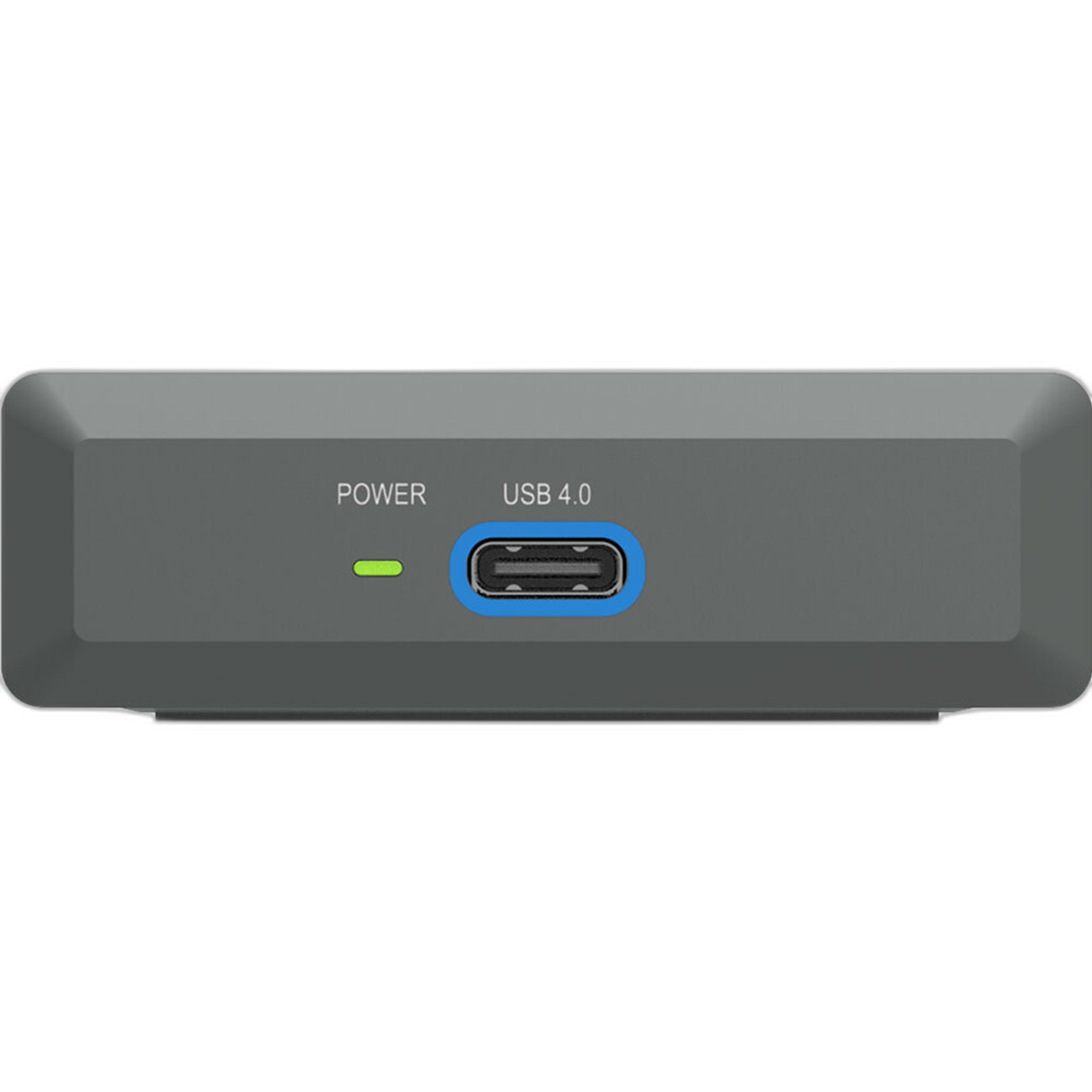
If you want to improve Lightroom efficiency in a meaningful way, these are smart products to consider from Unique Photo, especially if you want both expert-led education and reliable workflow gear from one trusted retailer.