Deadline-Proof News Photo Workflow: Fast Culling, Editing, Backup, and Delivery
Breaking news doesn’t wait for slow workflows. At Unique Photo, we help photojournalists and event shooters build efficient, reliable systems to cull, edit, caption, and deliver images under punishing deadlines—without sacrificing accuracy or backup safety.
How do I structure a fast, repeatable workflow for tight deadlines?
Start with a simple, consistent sequence you can run in your sleep: ingest, cull, caption, edit, export, transmit. Before an assignment, prebuild metadata templates (by outlet or beat), file-naming presets, and export presets for each client’s specs. On location, offload priority cards first, apply your ingest preset (renaming and IPTC), and begin culling immediately while a secondary backup runs in the background. A high-speed card reader is critical—Unique Photo carries dual-slot UHS-II readers, such as the Lexar Professional Workflow Dual-Slot SD UHS-II Reader (LRD1116), to halve ingest time and keep you moving.
What are the fastest ways to cull in Lightroom Classic or Capture One?
Speed comes from minimizing loading delays and limiting decision fatigue. In Lightroom Classic, use Embedded & Sidecar previews on import for instant loupe viewing, turn on Auto Advance, and make a single-pass decision with Pick/Reject (P/X) or star ratings. Build Smart Previews to edit smoothly on slower laptops. In Capture One, enable hardware acceleration, use Fast Import, and cull in the dedicated Viewer with star/color shortcuts. Across both apps, keep a tight shortcut map, collapse panels with Solo Mode, and synchronize develop settings across similar frames to avoid repetitive tweaks.
How should I handle on-location backups so I don’t lose images?
Follow a field-friendly version of 3-2-1. Record to two cards in-camera when possible, then on ingest, write to two separate SSDs (different brands or capacities) with verification enabled. Keep one drive on your person and one in the bag. During breaks, make incremental backups—don’t wait for the end. A reliable, fast reader minimizes the exposure window while files copy; a dual-slot UHS-II model like Lexar’s (LRD1116) lets you offload two cards simultaneously without bottlenecking your workflow.
What editing steps should I prioritize to move fast but keep quality?
Stick to a “least edits necessary” approach: white balance, exposure, contrast, and lens corrections first. Use camera profiles for a fast, consistent baseline. Lean on selective tools only when they materially improve readability (e.g., quick Subject Mask to lift faces). Keep presets for common lighting scenarios—tunnel, court-side LED, overcast, mixed tungsten—and sync those across similar frames. Save heavier retouching for later unless required by your outlet’s standards.
How do I caption and keyword efficiently under pressure?
Prepare IPTC templates with your byline, outlet, and boilerplate. For captions, build short text snippets for recurring beats (sports, city hall, crime scene, protest) and customize the who/what/where/when. Use voice dictation on your phone or laptop for speed, then proof once before export. Add location via reverse geocoding when available and use consistent slugs in filenames to keep sets organized for editors.
What export settings are best for wire or newsroom delivery?
Unless your client specifies otherwise, deliver JPEG, sRGB, quality around 80–90, and a long edge of 3000–4500 px for a good size-to-speed balance. Embed essential IPTC, strip GPS if privacy is a concern, and use a deterministic filename such as YYYYMMDD_Slug_Sequence.jpg. Queue an additional “web quick” preset (smaller, 2000 px long edge, slightly lower quality) for low-bandwidth scenarios.
What if connectivity is terrible at the venue?
Prioritize a tight first edit of must-run images and export the smaller “web quick” set. Use a mobile hotspot or phone tether, and try SFTP over FTP for more reliable transfers. If Wi‑Fi is saturated, move to a less crowded band or step outside for cellular. Keep an offline queue in your transfer app so batches auto-send when a signal returns. When available, in-camera FTP can push a two- or three-frame selection directly to the desk while you continue editing on the laptop.
Any gear tips for portraits on deadline during news assignments?
If your assignment includes a quick VIP portrait or stand-up, pre-pack a minimal, predictable lighting kit. A sturdy speed ring for your modifier saves setup time and frustration. We stock Chimera’s metal speed ring for Profoto/Octa systems, a dependable option for fast, repeatable assembly in the field. 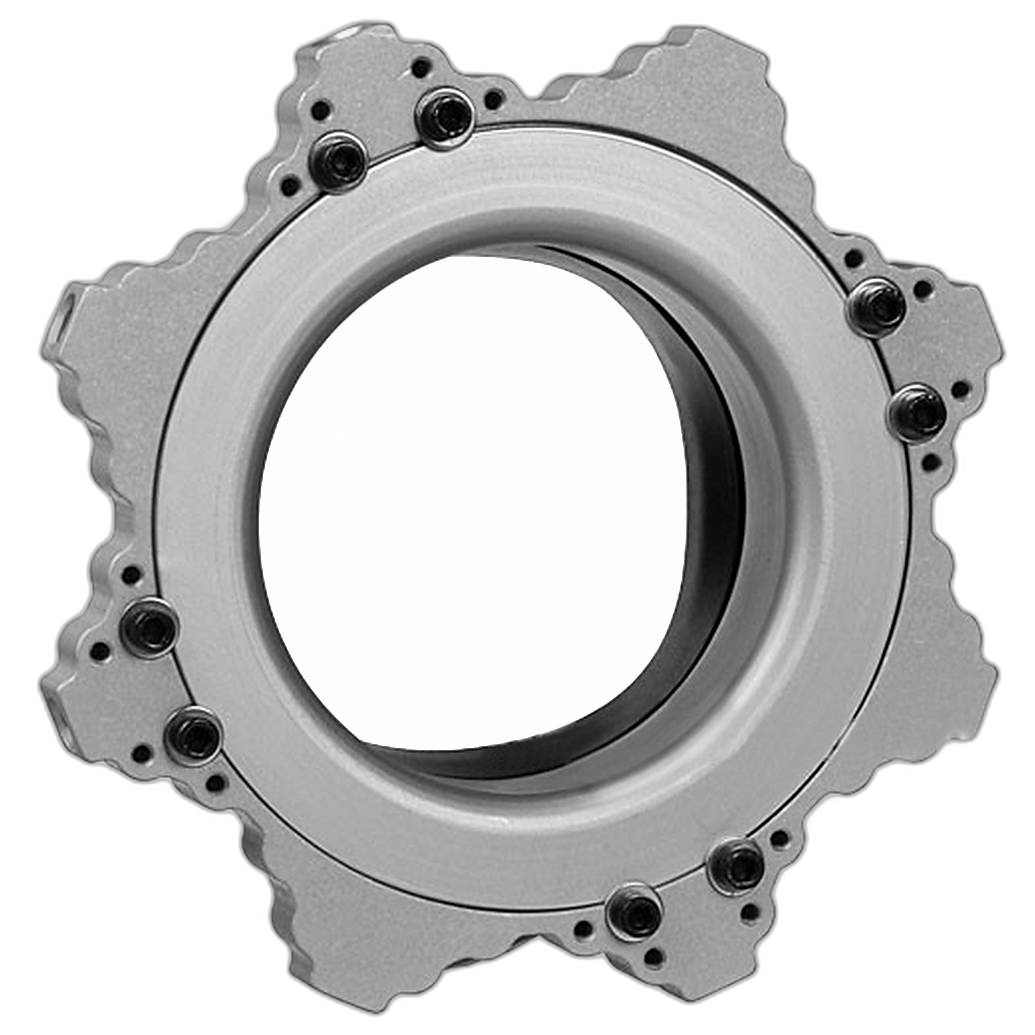
How do I keep learning and shaving seconds off my edit time?
Practicing targeted workflows pays off: build lighting presets, refine masking shortcuts, and learn batch strategies that translate across assignments. If you want to strengthen rapid retouching and tonal control, our in-house education team offers Photoshop classes that sharpen speed and decision-making—skills that absolutely carry over to news work. 
What’s a smart way to archive after the story runs?
Once the deadline is met, finalize a “selects” set with complete IPTC and back it up to your main archive. Many photojournalists also maintain a physical portfolio or leave-behind prints for clients. For clean, client-friendly presentation, consider a bi-directional memo album with space for notes, or a more formal embossed album. We carry multiple options and refill pages for long-term expansion. 
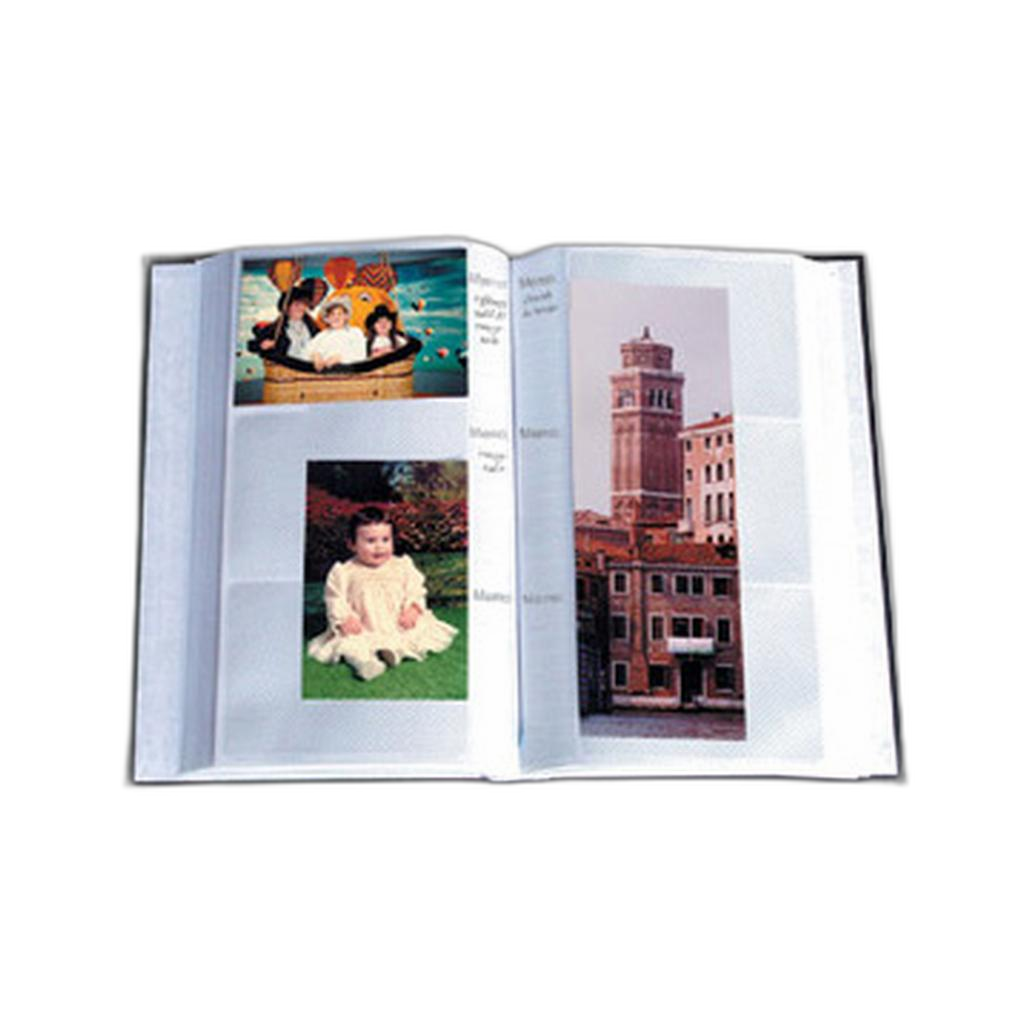
Need help dialing in your workflow or picking the right tools? Visit Unique Photo online or in our New Jersey superstore for expert guidance, hands-on demos, and fast gear that keeps you ahead of deadline.